The GUI Text Entry module is the key to getting labels for controls, or value readouts displayed on your control panel. This post covers the stock SynthEdit module and the third party module by Elena Novaretti. There are some modules by Davidson, but I’ll cover those in the next post.
The Synthedit stock Text Entry 4 module.
This is a good, and functional module, but if you want to use a different system font, change text colour, or background colour this means messing with the settings in the global.txt file located in your Skins folder.
Important Note: If you are going to make changes to your Skin, you’ll save a lot of grief if you copy the default folder (& all its contents), rename the folder, and only then edit the global.txt file. Do not alter the default folder and it’s contents.
You need to find the following section in the global.txt file:FONT_CATEGORY "Normal"
font-family "MS Sans Serif"
font-size 12
font-color #000000
background-color #ffffff
text-align center
I would add a new section in the file (yes you can do this, it won’t break anything).
The settings are close to those used in web design for CSS stylesheets.
For example:
FONT_CATEGORY "Text box 4"
font-family "Verdana"
font-size 14
font-color #FF0000
background-color #666666
text-align left
Important notes.
1) Normally in Synthedit colours are specified in the following format: #RRGGBB, in the Skins global.txt files this is reveresed to #BBGGRR.
2) Changes to the global.txt file may not fully take effect until SynthEdit is restarted, even if you reload by selecting normal, then go back to your new style. This can be frustrating if you are fine tuning, or making lots of changes.
1) FONT_CATEGORY is the name for your new style for the Text Box.
2) font-family specifies your font name.
3) font-size sets the text size in pixels
4) font-color sets the colour of the text NB keep the USA spelling of color otherwise it won’t be recognized!
5) background-color sets the colour of the backgound.
For a transparent background you can put a semi colon before this line like so ; background-color #FFFFFF text-align left sets the text to left justified, you can use center, or right. NB note the spelling of center (centre wont be recognized!)
If you want bold text you can add font-weight like so:font-weight bold. The options for this are; normal, bold, light, 100, 200, 300, 400, 500, 600, 700, 800, 900
I used the following addition:FONT_CATEGORY "Text Entry 4"
font-family "Verdana"
font-size 24
text-align left
font-weight bold
font-color #0000FF
; background-color #666666
This produced the following results (Top is the default “Normal”, the bottom is my new style “Text Entry 4”)

Text Entry 4: Plugs and settings.
All of these values can be specified by the Plugs, or the Properties panel.
Text:- The text to be displayed in the box. If there is a character limit it’s very big.
Style:- This is the section we have just set up in the global.txt file. The default setting is “Normal”.
Multiline:- The default is to put all the text on one single line. However much you enter the text will not wrap, it overflows the box. If you select the mutiline option the text will wrap at the horizontal limits of the box. Any text that doesn’t fit is still there, just hidden by the bounds of the box.
Writable:- This allows the user to edit the text in the GUI by default. Top prevent this deselect the option.
Greyed:- This gives you the option to “Grey out” the text. This changes the text colour to a mid grey value.
Hint: Displays a pop-up box explaining the purpose of the control.
Menu Items/Menu Selection: Allows you to set the right click options.
Mouse Down:- Outputs “True” when the user clicks the left mouse button (for the duration of the click) in the text box. The “writeable” setting does not affect this output. Once the box has been clicked on, the Mouse Down plug will not send a “True” value until the text box has been de-selected.
As you can see it’s a useful, and functional module, but if we want to customize it to suit our GUI colour scheme it gets a bit fiddly. Using Skins is a fiddly, time consuming and (sorry Jeff) outdated mode of customization.
ED Text Entry.
One of the many useful modules that Elena Novaretti has designed for Synthedit. This one allows more in the way of customization without using the Style option.
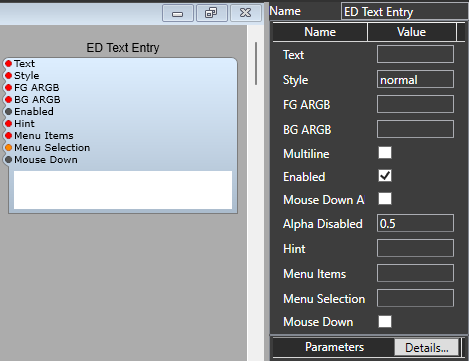
If this looks much like the stock Text Entry 4 you’re quite right. It’s just had some nice enhancements. I’m only going to cover any differences that Elena introduced.
FG ARGB:- Sets the text colour in the hex ARGB format, so FFFF0000 would give 100% Red for example, and 6600FF00 would give us a dark green, and so on.
BG ARGB:- As you no doubt guessed this sets the background colour in the same ARGB format. If you want a transparent background then just set the Alpha entry to 00.
Enabled:- The same as Writeable.
Mouse Down Always:- Specifies whether the module outputs “True” when it receives a mouse click when editing is disabled.
Alpha Disabled:- When the module is set as “Enabled” the Alpha is a always set to 1 (Fully opaque). The default is that when the module is not enabled the Alpha is 0.5, you can edit this for varying degrees of transparency from 0 (invisible) to 1 (opaque).
Leave a Reply