Credit for information provided:
Many thanks to Sylvain Cottarel for providing the precise rules governing the checking and updating of the preferences.xml file.
Registration system for VST plugins.
These modules allow you to have a simple Registration System for your VST Plugins by having a serial number that is directly linked to both the product name (name of your VST) and the registered user name.
The “Registration Check” module allows you to provide a basic system to register users of your plugins. The idea is you issue each user with a serial number. The serial is linked to the user’s name (or email).
Use two “User Setting – Text” modules, one to save the user’s name, and a second to store their serial. This data will be stored on disk and recalled any time the user loads the plugin. Each User-Setting-Text module needs a “key” which identifies what the setting is called. On the first User-Setting module, set “Key” to “Registration Name” or similar, and set the second module’s Key to “Serial” or similar. (Refer to the diagram below).
Registration Setting information will be saved to the following folders:
For Windows systems;
Windows C:\Users\UserName\AppData\Local\ProductName\Preferences.xml
For MAC OS systems;
MacOS ~Library/Preferences/ProductName/Preferences.xml.
Basic example.
In the example shown below a LED is used to indicate that a valid serial number has been entered.
In practice, you might choose to use this signal to restrict the features of your instrument, or to add periodic noise bursts etc.
To generate serials, use the “Registration Serial Generator” module
Important Note: You must not share this module with your end-users.
Note: You must ensure you enter the same “random seed” into the Registration Serial Generator that you used in the Registration Checker. The seed should be different for each of your plugins (otherwise the same serials will activate all of them). Currently, it’s necessary to generate each serial number manually.
The Registration Checker in use in a VST:
Product Name:
Ensure you enter a unique product-name into the User-Setting-Text module at the time of creating your VST. Otherwise the system will mix up serials from different products and you’ll end up with a total mess.
The “Default” setting is not important, it can be left blank, however you can put a useful message in here such as “Enter User Name”. Note: If you are using the Password hide module there is no point as your message will become **********, so it would be better to use another Text Entry with the appropriate control labels.
Random Seed:
You must enter this Integer in the Registration Check module’s properties when programming the VST It MUST be unique to each plug-in you create (not for each one of the same type you sell though!)
User Name:
The user enters their User Name or E-Mail address in here, which they have supplied to you (email is best, the chances of two people having the same e-mail address are, well pretty remote).
Serial Number:
The user enters the serial number generated by the combination of their user name, and the Random Seed Integer.
In this example Text Entry 4 Changes to Registered = True when all the three variables match: Random Seed, User Name, and Serial Number. In practice you can use this to disable certain parts of the VST, add random noise bursts etc. which will then be removed when the correct registration details have been entered.

Hiding your passwords.
One more helpful thing you can add is the password hide. So if a user is making a video of something with the plugin the serial numbers are shown as asterisks after entry like ****** instead of 235256 for example if the registration screen is displayed on the main control panel.
Creating Passwords.
This just needs the Registration Serial Generator, and the Text Entry4 module to display the generated password.
All you need here is the Rego Name – this is ideally the clients email address, and the Random Seed Number.
Important: The Random Seed number must not be shared. The Registration Serial Generator must never be shared or left in the final VST.

User Setting – Text module.
Passes the relevant information to the Registration checker for validation.

Plugs:
Left Hand Side:
-> Product:- (Text) The Product name i.e. the name of your VST. This must match in both the User and Serial modules!
-> Key:- (Text) The Key value of User Name, or Serial Number. Leave as Default when programming.
-> Default:- (Text) Leave as Default when Programming.
Right Hand Side:
<- Value:- (Text) User Name or Serial number input from a Text Entry4 module by the end user.
<- Value:- (Text) User Name or Serial number sent to the Registration Checker module.
How the User Setting – Text module operates.
The module takes your settings, and creates an XML file, this file is then saved in a folder where no user permissions are needed by SE. The name entered into the product plug in the properties panel will give the XML file it’s filename.
Note: Once you have decided on the name for the settings, don’t change it, if you give the Product plug a new name it will create another XML file and folder. For this reason the left hand side plugs cannot be updated with a string from another module. These values must be set manually in the properties panel when programming.
About the XML File and it’s location.
You’ll find the xml file(s) created in : C:\Users\”USERNAME”\App Data\Local\”your vst name”\Preferences.xml.
The file is re-created if it has been removed, or is not found.
1) On opening the vst, any User setting – text module looks in the app data folder if it can find a folder which has a name equal to its Product pin input.
2) If the module finds this folder, it checks the folder to see if it contains a Preferences.xml file.
3) If a Preferences.xml is located, the Module reads the file if a key is present corresponding to its Key pin input.
4) If the key contents are identical, the value of the key is sent to the Value output pins (GUI and DSP)
5) If the key is not present, the module writes the value present in its Value Gui plug in the xml file, or, if there is on key present, the module writes values of its Default value plug.
6) If the module doesn’t find the Preferences.xml file in the folder or simply doesn’t find the folder, the module creates a new folder with a name corresponding to its Product plug value, then creates the Preferences.xml file inside and then writes the key value following the previous rules into the xml file.
Important note: Just to make things 100% clear the module does not know the location of the VST it is in, just where to find the relevant preferences file. This will always be correct as the module always has the full path to find the file wherever the VST is located.
Registration Check: Module.
There are two versions of these GUI and DSP. They both check the combination of User Name, Seed, and Serial Number to ensure they are a valid match.

Plugs:
Left Hand Side:
-> Rego Name:- (Text) Input of the User name. Put a default value in the properties during programming.
-> Serial:- (Text) Input of the Serial Number. Put a default (false obviously!) value in the properties during programming.
Right Hand Side:
<- Is Valid:- (Boolean) Returns a value of “True” if all the conditions match.
Properties:
♦ Seed:- (Integer) This is your random Seed Number for your VST module to identify it. This MUST be a unique number entered into the modules properties during programming of your VST. It must never be made public.
Important: Do not forget to add this Seed value to the properties for this module, otherwise the Plugin can never be registered. All the Seed numbers must match for the system to work.
Using a timed noise burst to encourage VST registration.
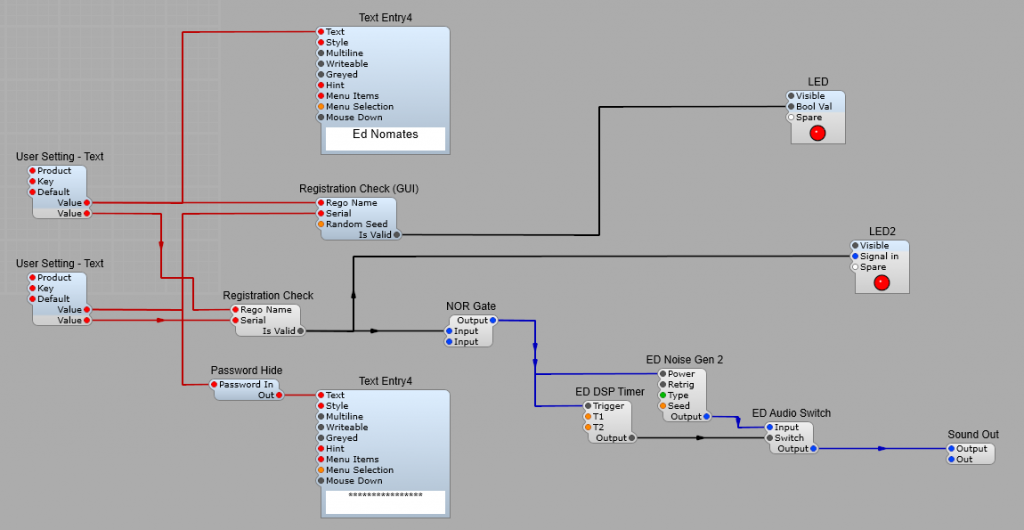
Note: Uses Elena Novaretti’s ED Timer, ED Noise Gen2, and ED Audio Switch.
If you have used Demo VST plugins from a company such as Cherry Audio, you will be aware that they are fully operational, but have a timed noise burst to encourage the potential buyer to get their credit card out. This is easy to add to the registration setup. (The LED’s are not needed for operation, they are there for illustartion only. Until the user enters the correct serial/user name combination the struycture will output a noise burst somewhere in the the audio stream. A soon as the correct details are entered, the noise bursts will cease.
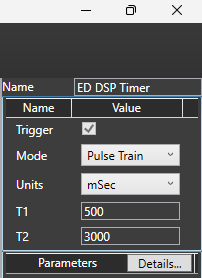
The timing of the bursts are controlled by T1 and T2. The settings below will give you a 1/2 second burst of noise every 3 seconds.
Leave a Reply